
Choose the coverage you need
Prepare a city, a custom area, or the corridor around a route. Review the coverage and estimated download size while you have a connection.
Download map and routing coverage before you ride beyond mobile reception.
Downloads use the current account allowance shown in the app. Beta availability and provider readiness apply; existing installed coverage remains separate from new download admission.
Find it in the appHome → Downloads · Routes → route download
Prepare a city, a custom area, or the corridor around a route. Review the coverage and estimated download size while you have a connection.
Preparation, download progress, retry, and installed coverage are separate states. Wait for the app’s completed status before leaving reception.
Maps, route calculation, and local place search use the installed resources. The complete connecting path must stay inside your downloaded network.
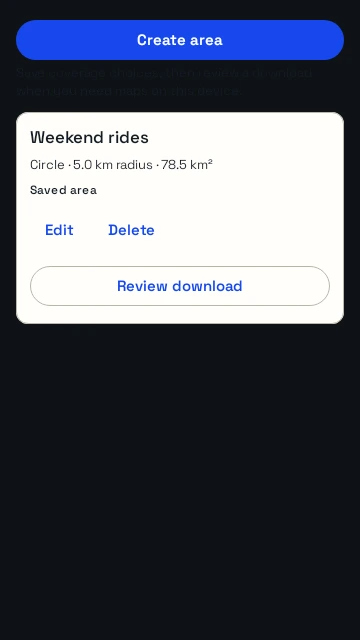
Saved map-area definitions can be part of your private account library. The actual map files stay on your device and must be downloaded there.
Map display, route calculation and place search are separate resources. The area workflow brings them together and reports their states. A visible area boundary or a started transfer does not mean every resource is ready.
Allow time and device storage for the download. If it is interrupted, use the recovery controls shown by the app and check completion. Include some margin around the route for diversions.
The account controls new download admission and any current monthly allowance. Saved area definitions and installed files are separate. Copying an area definition to another device does not copy its map bytes.
Explore actual Android app screens with example data. Open a screen for a full-size view.
Saved custom-area definitions stay distinct from downloaded map packages. This native R6 UI is shown with controlled sample data.
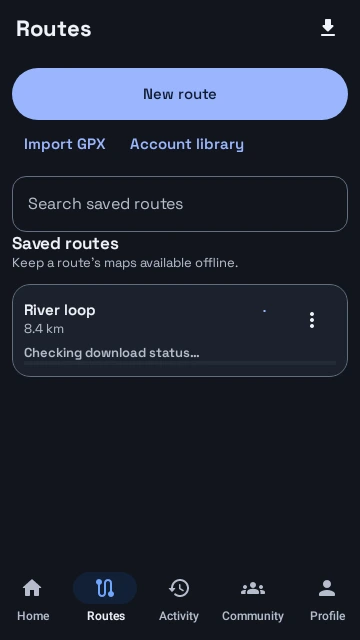
Build a new route, import GPX, search saved routes, and check each route’s download status. Native R6 UI with sample data.
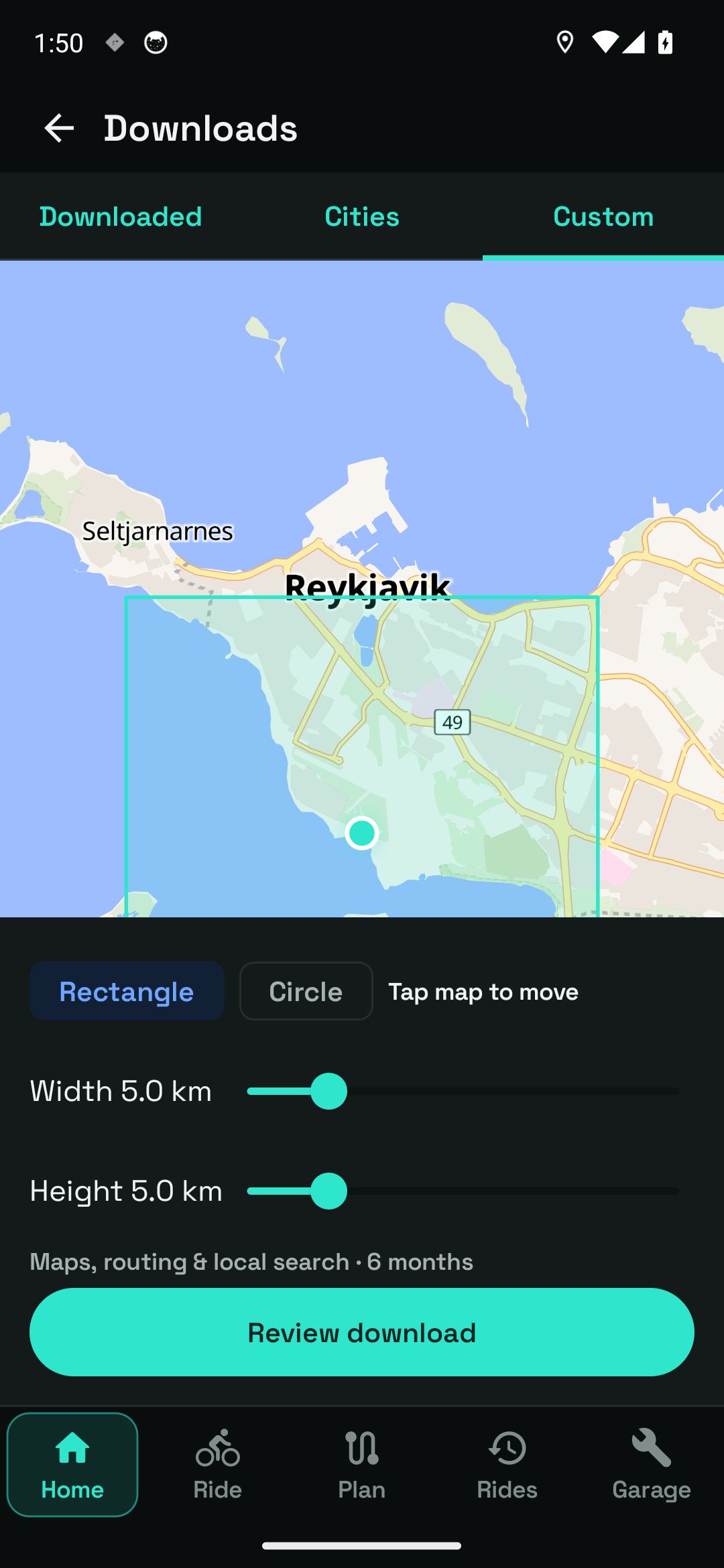
Choose a rectangle or circle and adjust coverage in the real area picker.
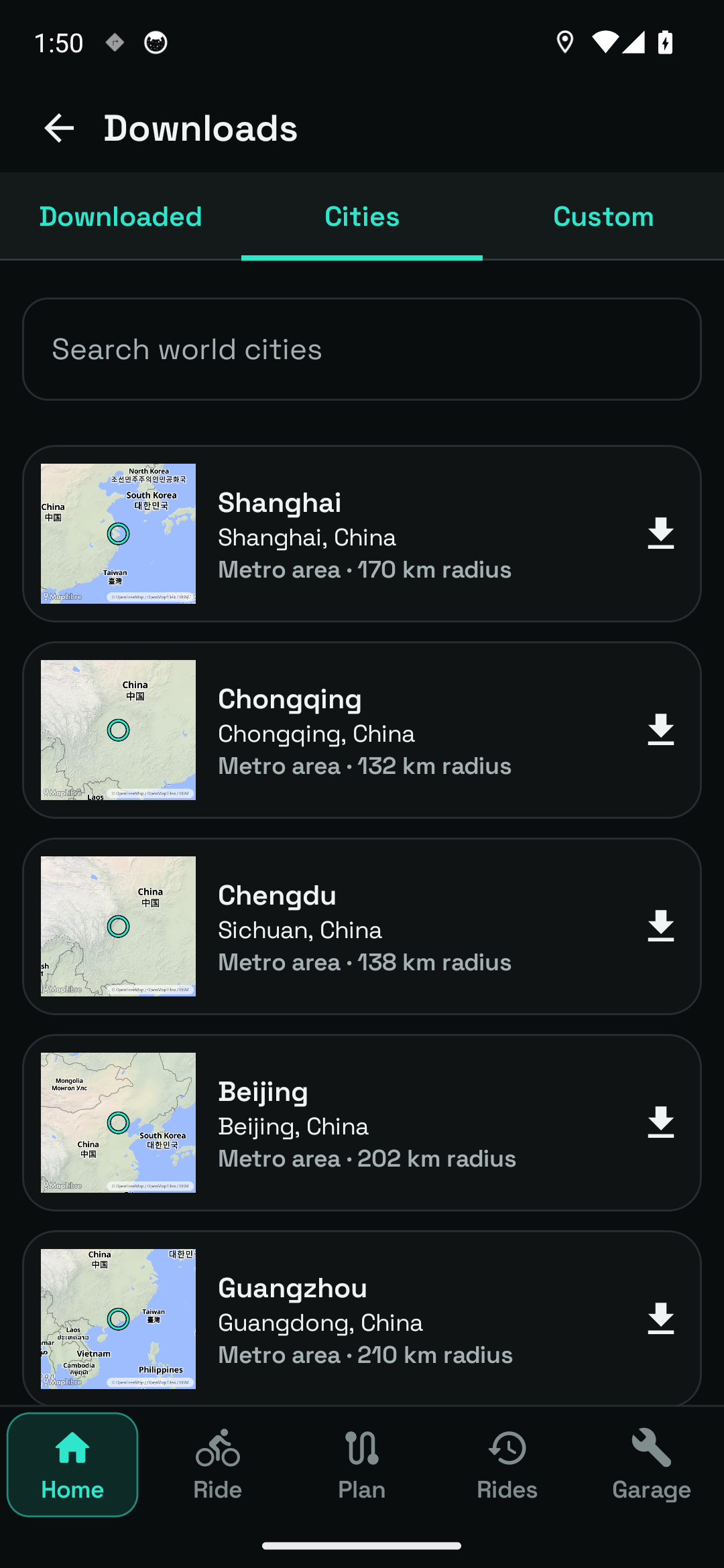
Search the world-city catalogue and review each city's download boundary.
Recording itself works without mobile data. Fresh weather, new downloads, and live group positions need a connection. Imagery and terrain depend on their own availability.
Open Downloads and select a city, custom area, or route coverage.
Inspect the area's options and start preparation while connected.
Wait for Ready offline and check the saved area before leaving reception.
Downloads use the current account allowance shown in the app. Beta availability and provider readiness apply; existing installed coverage remains separate from new download admission.
Questions, answered
No. Recording works without downloading a map. Offline resources support viewing maps, finding covered places and calculating routes without mobile data.
No. Fresh forecasts and new live group updates still require a connection.
Register your interest. We’ll email testing instructions when a beta place is available.